
How to Import Recipes From Any Website, Video, or Cookbook
The problem with saving recipes the old way
Most home cooks have a recipe problem that feels invisible until they actually need to cook. Dozens — sometimes hundreds — of recipes saved across four or five different places, none of them usable in the moment you need them.
A screenshot from six months ago, buried under five hundred photos. A YouTube video in a watch later list that now has sixty items in it. A browser bookmark inside a folder called 'food' that has not been opened since last year. A link forwarded by a friend that requires scrolling through weeks of text messages to find again.
Importing recipes from all of these sources into a single app is the only way to make the collection you have already built actually useful. Here is how to do it from every major source.
Importing recipes from URLs and websites
The fastest and most common way to build a recipe library is to import directly from recipe websites by pasting the URL.
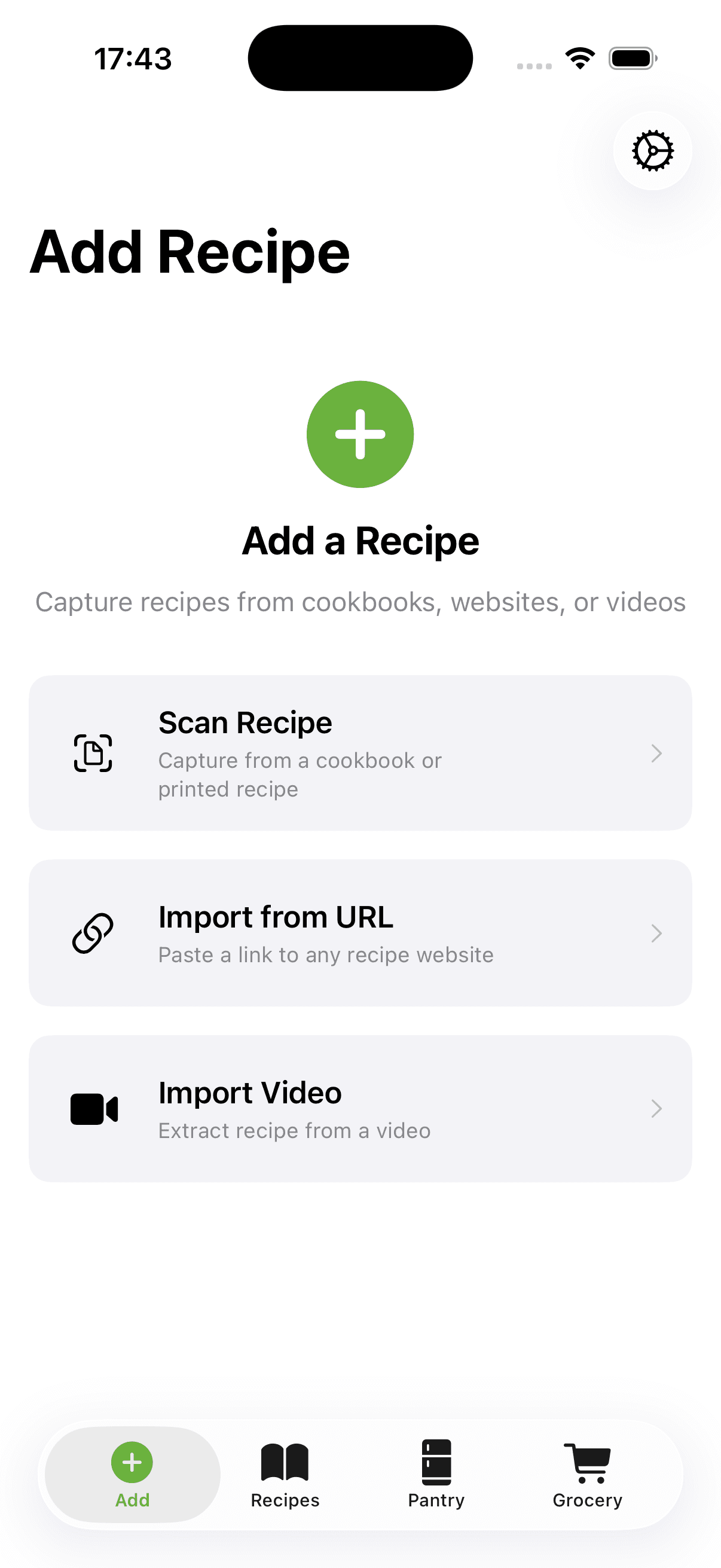
Most major recipe sites — Serious Eats, NYT Cooking, AllRecipes, BBC Good Food, and thousands of personal food blogs — use standard recipe markup that recipe apps can read automatically. You copy the URL from your browser, paste it into the import field in your recipe app, and the app extracts the full recipe in seconds. No typing, no reformatting, just a clean recipe ready to save and cook from.
The quality of the extraction depends on how well the source is structured. Major recipe sites are almost always clean. Personal food blogs are usually fine. Pages that require a login or embed the recipe only inside video content may not import fully.
For sites that do not import cleanly, a good recipe app gives you the option to edit the imported result before saving, so you can correct anything that was not captured correctly.
Scanning physical cookbooks with your iPhone camera
Physical cookbooks are where many people's most-used recipes live, and until recently getting them into a digital app meant typing everything by hand.
AI camera scanning changes this entirely. Open a recipe app with built-in scanning, point your phone camera at any cookbook page, and the app reads the recipe. It identifies the title, ingredient list with quantities, and cooking steps, separating them automatically from the surrounding page text, headings, and photos.
The results are accurate for the vast majority of standard cookbook layouts. Unusual formatting, very small type, low-contrast photocopied pages, or heavily stylized layouts may need minor corrections after scanning. But for most printed recipes, scanning is accurate enough to save the complete recipe in under a minute — compared to five to ten minutes of manual typing.
Camera scanning also works for printed recipe cards, newspaper clippings, magazine cutouts, and handwritten family recipes. Any recipe you can photograph, you can import.
Importing recipes from YouTube and video content
Recipe videos are one of the most consumed food content formats online and one of the least practical formats for actually cooking. You cannot follow a video step-by-step in the kitchen without constantly pausing, scrubbing back, and trying to catch ingredient quantities as they flash on screen.
Some recipe apps can extract recipe content from video URLs. When the video creator has published a written recipe in the video description, the app reads and formats it automatically. For videos without a written description, the app can process the video's auto-generated transcript and identify the recipe structure within it — ingredients, quantities, and steps — based on what the creator says aloud.
Accuracy varies with the video. Creators who clearly state ingredient quantities while cooking produce better transcripts. Channels that consistently publish written recipes alongside their videos import most reliably. After importing, you can edit the result in the app to correct anything that was not captured precisely.
Using the iOS share sheet to import from any app
The iOS share sheet — the panel that appears when you tap the share icon in Safari, Instagram, Pinterest, or any other app — gives you a direct route into your recipe app without switching between apps manually.
When you find a recipe you want to save anywhere on your iPhone, tap the share icon, find your recipe app in the share sheet, and the import happens in the background. You return to what you were doing and the recipe is waiting in your collection when you open the app later.
This works for any content that can be shared from iOS: website links, video links, posts, and direct links from any platform that supports the iOS share extension. The share sheet method is faster than manually copying and pasting URLs because it eliminates the need to switch apps or handle the URL directly.
What to do after you import a recipe
Importing is the beginning of the process, not the end. Once a recipe is in your app, you have full editorial control over it.
Most imported recipes need minor edits: correcting a quantity the scanner misread, removing a promotional paragraph that got pulled in alongside the ingredients, or adjusting a step that was captured in a confusing format. A good recipe app makes this editing fast — you are working on your own copy of the recipe, not the original source.
After editing, tagging is the step that makes your library searchable over time. Add cuisine type, cook time bracket, dietary tags, and occasion labels as you save each recipe. These tags become the filters that let you find exactly what you need — 'quick vegetarian dinners' or 'weekend recipes under an hour' — in a few seconds rather than scrolling through everything you have imported.
Building your recipe library one import at a time
A recipe library built through consistent importing becomes one of the most useful tools in your kitchen: a personal cookbook of everything you actually cook, searchable and accessible from your phone while you are standing at the stove.
The habit that keeps it useful is importing recipes immediately when you find them rather than saving a link to look at later. When someone sends you a recipe in a message, import it before you close the conversation. When a cookbook page catches your eye, scan it before you put the book back on the shelf. When you find a recipe on a website, import it before you close the browser tab.
These three seconds of effort at the point of discovery prevent twenty minutes of searching later. A recipe library that gets updated in real time is always ready when you need it — which is the entire point of building one.
Ready to cook with what you have?
CookFlic captures recipes from anywhere, matches them to your pantry, and guides you step-by-step. See all features →
DownloadFrequently Asked Questions
Can I import recipes from any website URL?
Most recipe websites can be imported via URL with high accuracy. Sites that use standard recipe schema markup import cleanly and automatically. The main exceptions are sites requiring a paid subscription to view the full recipe, or platforms where the recipe exists only embedded inside a video with no written version published.
How do I save recipes from Instagram or TikTok to a recipe app?
Use the iOS share sheet. When you find a recipe video or post, tap the share icon and select your recipe app from the list. If the post links to an external recipe page, you can also copy that URL and paste it into the app's import field. Recipes that exist only as video content with no written description may require manual entry for the ingredient list.
Can I scan a cookbook page with my iPhone and import it as a recipe?
Yes. Recipe apps with built-in camera scanning let you photograph any cookbook page and extract the recipe automatically using optical character recognition. The app reads the ingredient list, quantities, and steps. Results may need minor corrections for unusual layouts, but most standard cookbook pages scan accurately in under a minute with no typing required.
Can I import a recipe from a YouTube video?
Some recipe apps can import from YouTube URLs by reading the video description or processing the auto-generated captions. Videos where the creator clearly states ingredient quantities and steps, or where a written recipe is published in the description, produce the most accurate imports. After importing, you can edit the result directly in the app to correct anything that was not captured correctly.
Related articles
8 min read
How to Save, Scan, and Organize Recipes on iPhone
Save recipes from Safari, TikTok, and YouTube, scan cookbook pages with the camera, and store everything in one searchable library on your iPhone. A setup that sticks.
8 min read
5 Ways to Cook With What You Have in Your Fridge
Stop running to the store for one missing ingredient. These five strategies help you make great meals from the food already sitting in your kitchen.