
How to Save, Scan, and Organize Recipes on iPhone
Why the recipes you save on iPhone go missing
If you cook regularly, your recipes are scattered. Saved posts in Instagram. Bookmarks in Safari. Screenshots buried six months deep in your camera roll. Handwritten notes on scraps of paper. Links forwarded from friends in text message threads you will never find again. Cookbook pages you meant to photograph but never did.
The problem is not that you lack recipes — it is that your collection is too fragmented to use. When it is time to decide what to cook, finding a specific recipe means hunting across five different places. Half the time you give up and just order food instead. Organizing your recipes on iPhone solves this. One place, everything searchable, accessible while you are standing in the kitchen with flour on your hands.
How to save recipes on iPhone: one app for every source
The single most important step to organizing your recipes on iPhone is committing to one app where everything lives. Not two apps, not three. One.
The app you choose needs to handle multiple input types — not just URLs, but also photos of physical cookbooks and handwritten recipes, because those are where many of your best recipes likely live. It also needs to store recipes offline so you are not dependent on wifi while you are cooking.
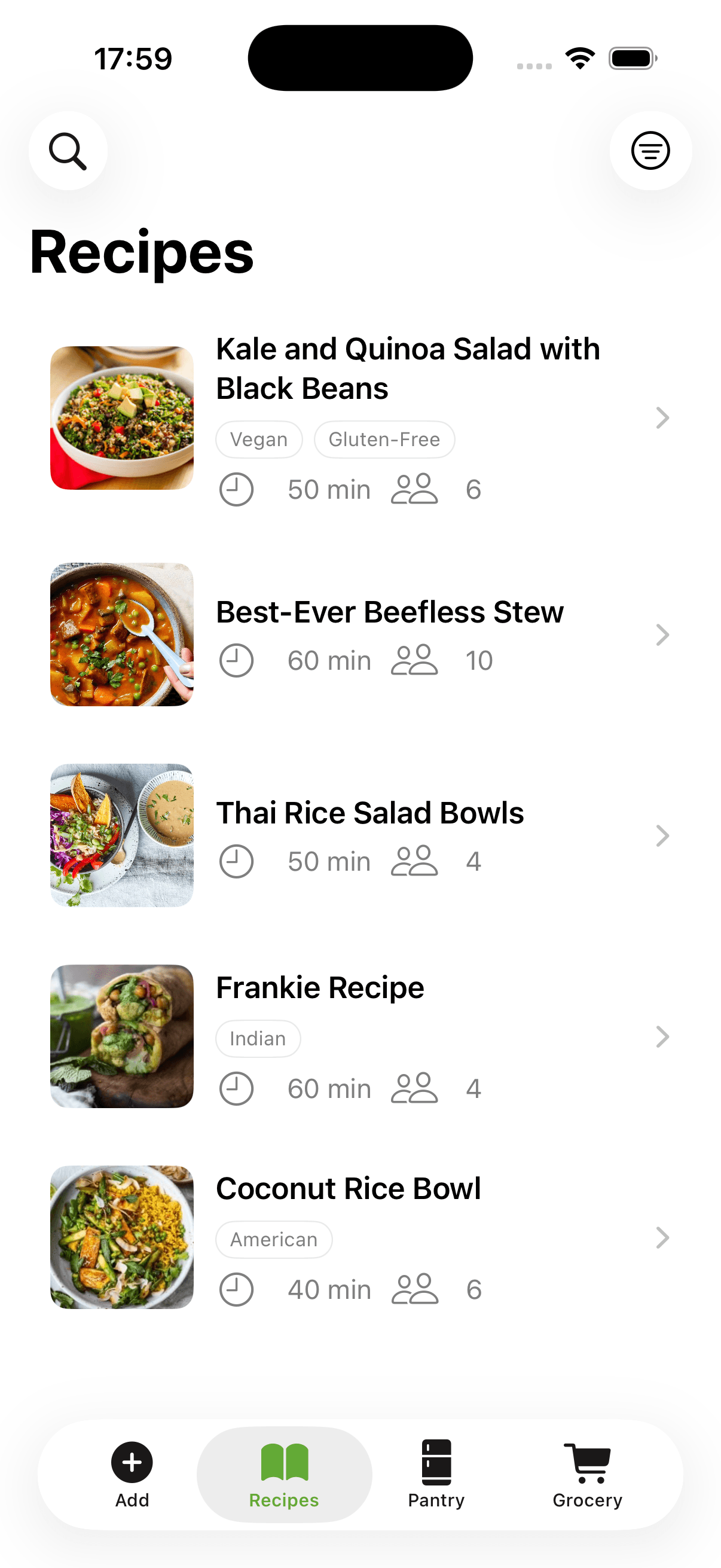
CookFlic is designed specifically as an iPhone recipe manager that covers all input methods. Share a link from Safari, TikTok, or YouTube through the iPhone share sheet and it extracts the recipe from the page, or from the video's caption and description. Instagram works when the caption holds the recipe. Open the camera and scan a cookbook page or a handwritten card. Once you have one central app, the next step is getting everything into it.
If you start with a recipe app that requires too much manual entry, you will abandon it within a week. Choose one that does the heavy lifting for you.
Move your existing recipes over, but be selective
Start by moving the recipes you actually cook, not everything. Go through your browser bookmarks, screenshots, and saved posts and import the ones you have made in the last year. Ignore recipes you saved on impulse but have never tried. If you have not cooked it in twelve months, it probably is not worth importing.
This keeps the import process manageable and ensures you are not spending hours archiving recipes you will never use. Go through your browser bookmarks first — any cooking bookmark gets imported by pasting the URL. Then go through your screenshots. Any screenshot of a recipe gets scanned with the camera. Text message threads last.
For physical cookbooks, you do not need to import every page. Mark the recipes you actually use regularly, then scan just those. A cookbook with thirty recipes might only have six that you return to. Start with those six and add more over time as you make them. Coming from Paprika? Export your recipes there and import the file into CookFlic, so you do not redo them one by one.
Tag and categorize as you go
Tags make your recipe library searchable and filterable. The best tagging system is one that matches the way you actually look for recipes, not the way a cookbook author would categorize them.
Useful tags fall into a few categories: meal type (breakfast, lunch, dinner, snack, dessert), cuisine (Italian, Asian, Mexican, Mediterranean), dietary needs (vegetarian, vegan, gluten-free, dairy-free), cook time (under 30 minutes, under 1 hour), and occasion (weeknight, weekend, meal prep, entertaining).
You do not need all of these — pick the ones you actually filter by. Add tags when you import a recipe and you will never have to go back and tag everything in bulk later. Most good recipe apps let you filter by multiple tags at once, so 'vegetarian' plus 'under 30 minutes' gives you exactly what you need on a busy Tuesday.
How to scan recipes on iPhone: cookbooks and handwritten cards
Physical cookbooks are where many people's best recipes live — and also where they stay, untouched and unsearchable, on a shelf.
Digitizing cookbooks does not mean scanning every page. It means capturing the recipes you actually use in a format that is findable. Start with the five or ten recipes from each cookbook that you return to regularly. Open a recipe app with camera scanning, point your iPhone at the recipe page, and let the AI read it. A good recipe scanner can distinguish ingredient lists from instructions and extract the structure automatically, even from older cookbook layouts with unusual formatting.
Once a recipe is in your app, you can annotate it: add your own notes about what worked, what you changed, what substitutions you made. Your digitized cookbook becomes your personal version of the recipe — edited, tagged, and ready to find in seconds.
For recipes with sentimental value — handwritten family recipes, recipe cards from relatives — digitizing them preserves them permanently regardless of what happens to the original.
How to store recipes on iPhone so they survive a new phone
A recipe library is only useful if it stays current and easy to navigate. A few habits keep it healthy over time.
Delete recipes you made once and did not enjoy. An overcrowded app with mediocre recipes gets harder to use over time. Mark favorites so your best recipes surface first. When you discover a variation that works better — a different sauce, a substitution that improved the dish — update the recipe in the app to reflect what you actually cook.
CookFlic keeps every recipe on the phone and syncs it to your account, so a new iPhone means signing in, not exporting. Deleted recipes sit in Trash for 30 days before they are gone, which covers the accidental swipe.
A recipe library that gets maintained over time becomes a record of your cooking life, not just a collection of links.
Keep it alive
The difference between a recipe app that helps you and one that collects dust is the habit of adding recipes immediately when you find them, rather than bookmarking or screenshotting for later.
When someone sends you a recipe link in a message, open your recipe app and import it right then. When a cookbook page catches your eye, scan it on the spot. When you find a recipe on a website, import it before you close the browser tab.
These three seconds of friction at the point of discovery save you twenty minutes of hunting later. A recipe library that gets updated in real time is always ready when you need it — which is the whole point of organizing your recipes in the first place.
Ready to cook with what you have?
CookFlic captures recipes from anywhere, matches them to your pantry, and guides you step-by-step. See all features →
DownloadFrequently Asked Questions
How do I save recipes on my iPhone?
Use one recipe app for everything and send recipes to it the moment you find them. From Safari, TikTok, or YouTube, tap Share and pick the app. For a cookbook or a handwritten card, open the app's camera and scan the page. Everything lands in one searchable library instead of scattered screenshots and bookmarks.
How do I save a recipe from TikTok or Instagram on iPhone?
Tap Share on the video, choose your recipe app, and it reads the recipe from the caption and description. TikTok and YouTube work reliably this way. Instagram is best effort: it works when the creator put the recipe in the caption, and fails when the recipe only exists in the spoken video.
What is the best way to organize recipes on iPhone?
The most effective system is a single dedicated recipe app that handles all input types — URLs, camera scans, and shared links. From there, tag recipes by cuisine, cook time, and dietary type as you add them. The goal is a searchable library you can filter quickly while standing in the kitchen.
How do I scan a recipe on iPhone?
Yes. Recipe apps with built-in camera scanning let you point your iPhone at any cookbook page and extract the recipe automatically — ingredients, quantities, and steps. This is the fastest way to digitize physical cookbooks without any manual typing.
How do I import recipes from websites on iPhone?
From Safari, use the share sheet to send a recipe URL directly to a compatible recipe app. Alternatively, copy the URL and paste it into the app's import field. A good recipe app strips out the ads and clutter and extracts just the ingredients and instructions from almost any recipe website.
How do I organize recipes without an app?
Without an app, the most practical approach is a folder of bookmarks in Safari organized by category, combined with a Notes folder for photographed physical recipes. That said, a dedicated recipe manager app is significantly more useful because it makes recipes searchable by ingredient, lets you filter by cook time and cuisine, and scales servings automatically.
Related articles
8 min read
5 Ways to Cook With What You Have in Your Fridge
Stop running to the store for one missing ingredient. These five strategies help you make great meals from the food already sitting in your kitchen.
7 min read
Why Meal Planning Starts With Your Pantry
Stop planning meals you will not cook. The best way to meal plan from your pantry is to start with what you already have — not a list of recipes from a food blog.